

Integration ScopeUpstash Prometheus Integration covers Pro databases, databases included in the Enterprise Plan, and databases with the Production Pack.
Step 1: Log in to Your Upstash Account
- Open your web browser and navigate to Upstash.
- Navigate to the main dashboard, where you’ll see a list of your databases.
Step 2: Select your Database
- Select the database you want to integrate with Prometheus.
- This will open the database settings, where you can manage various configuration options for your selected database.
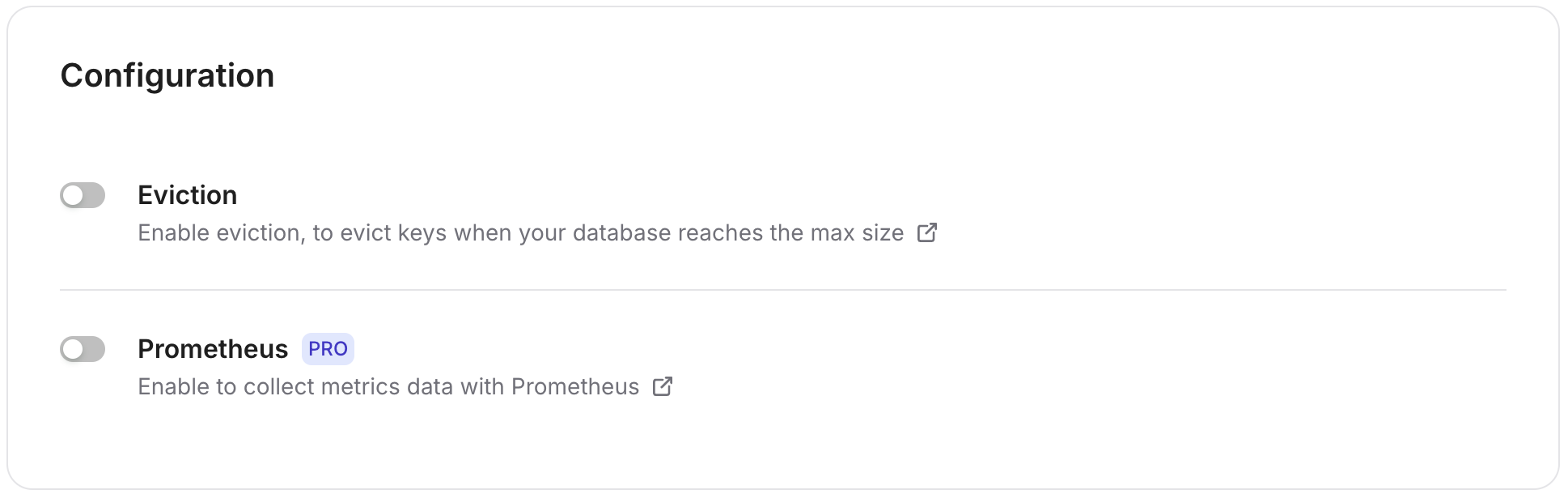
- Enable Prometheus by toggling the switch. This allows you to monitor metrics related to your Upstash database performance, usage, and other key metrics.
Step 3: Connect Accounts
- After enabling Prometheus, a monitoring token is generated and displayed.
- Copy this token. This token is unique to your database and is required to authenticate Prometheus with the Upstash metrics endpoint.
Header FormatYou should add monitoring token according to this format
Bearer <MONITORING_TOKEN>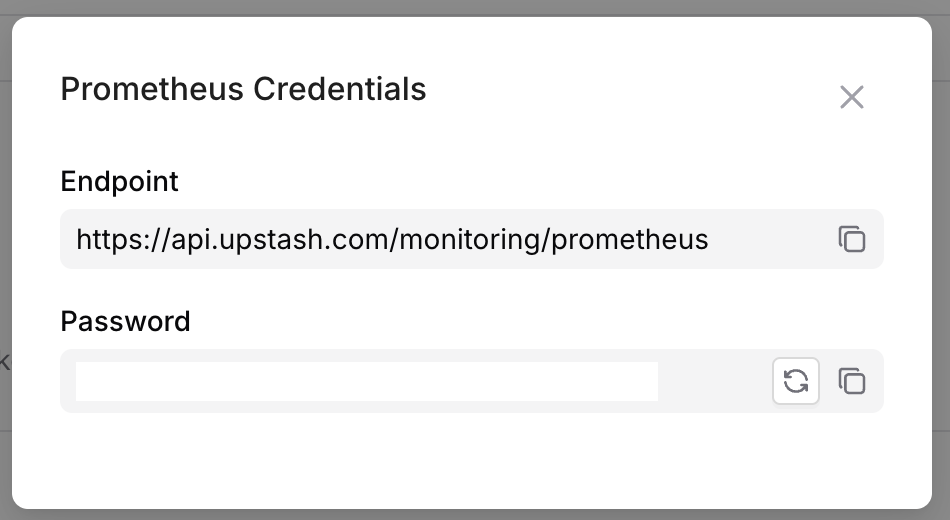
Step 4: Set Up Prometheus Connection
Grafana Dashboard Setup
- Open your Grafana instance, navigate to the Data Sources section, and select Prometheus as the data source.
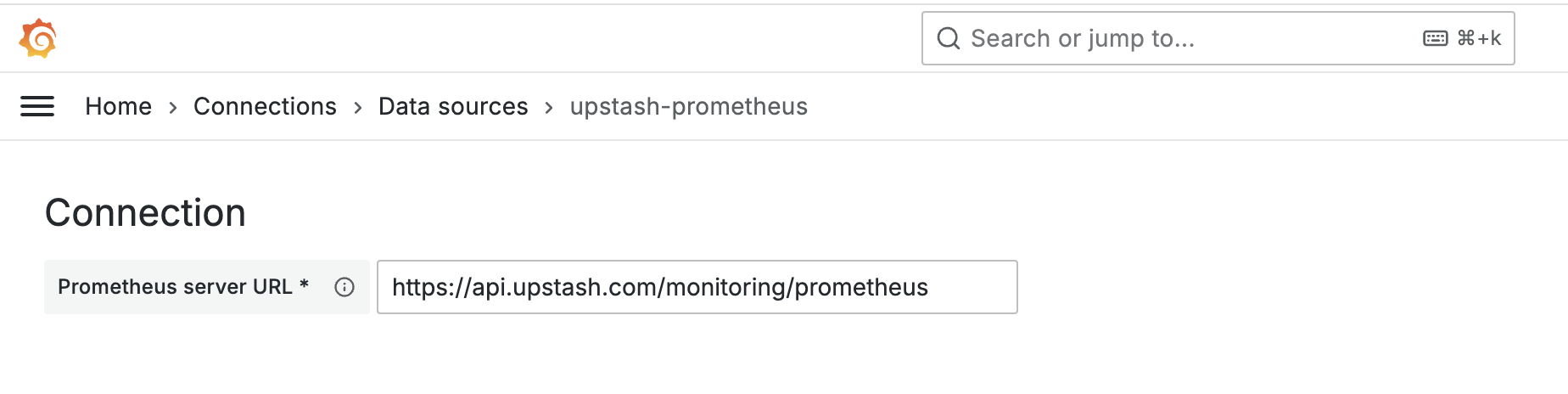
- Enter the data source name, set
https://api.upstash.com/monitoring/prometheusas the data source address, and then add your monitoring token in the HTTP Headers section.
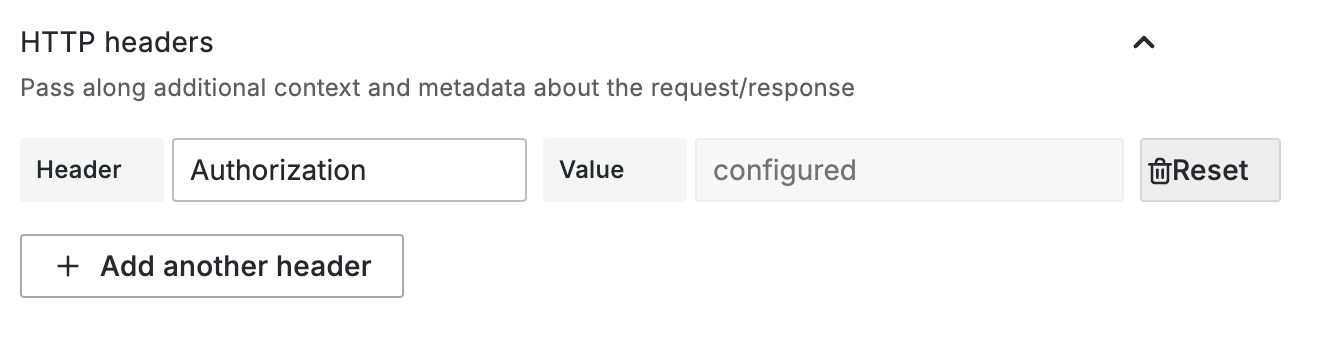
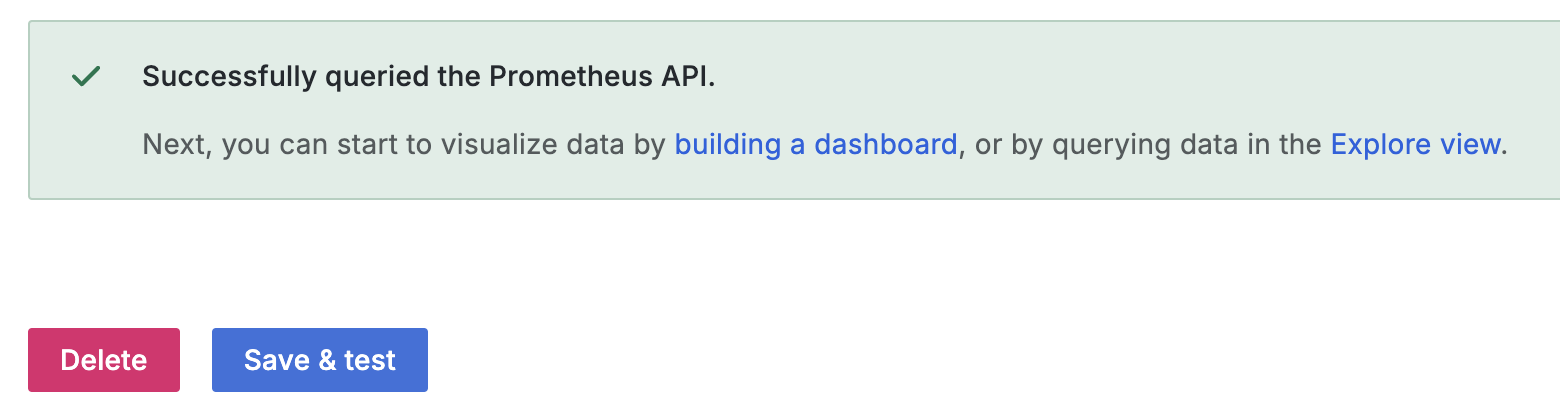
- Then, click Test and Save to verify that the data source is working properly.
Prometheus Federation Setup
Federation lets your Prometheus pull metrics from Upstash’s API and store them in your own Prometheus instance, so Grafana can query your Prometheus instead of hitting the Upstash endpoint directly.When to use federation
- You already run Prometheus and want to persist Upstash metrics locally.
- You want to control retention, recording rules, or alerts on Upstash metrics
- Set up a new scrape job in your Prometheus configuration file (
prometheus.yml):
This configuration assumes you want to pull all metrics. You can adjust the
match[] parameter to filter specific metrics if needed.upstash_db_metrics{database_id="your_database_id"}can be used to pull metrics for a specific databaseupstash_db_metrics{replica_id=~"us-east-1.*"}can be used to pull metrics for replicas in a specific region
- Verify the Federation Target
- Reload (or restart) your Prometheus server to apply the new configuration.
- Visit Prometheus → Status → Targets and confirm
federate_upstashis UP
Step 5: Wait for Metrics Availability
To visualize your Upstash metrics, you can use a pre-built Grafana dashboard. Select your Prometheus data source when prompted, and complete the import. Please check this address to access Upstash Grafana Dashboard Dashboard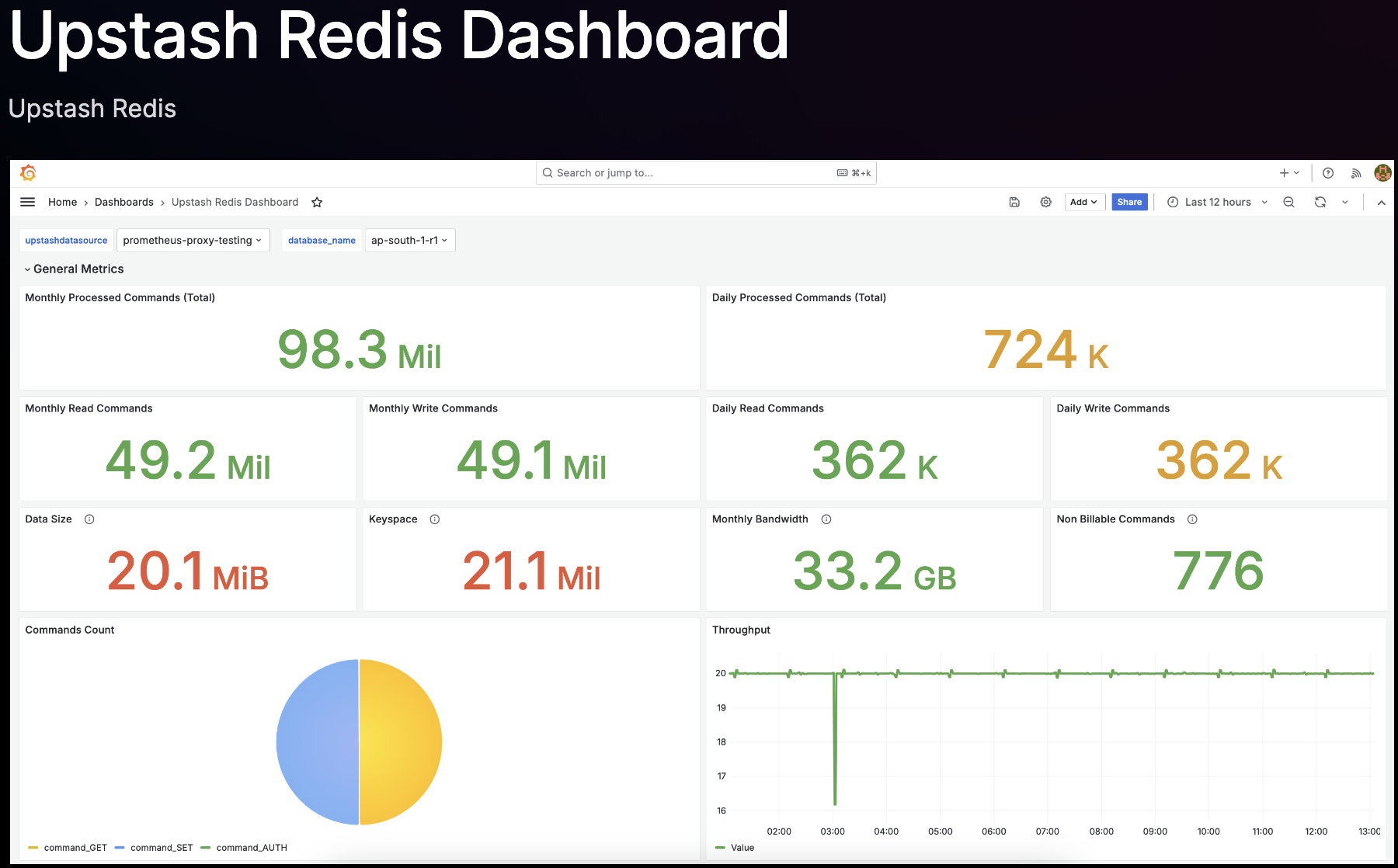
Available Metrics
Every series is namedupstash_db_metrics and carries the labels database_id, database_name, account_id, replica_id and metric_name. Query one metric by its metric_name label, for example upstash_db_metrics{metric_name="daily_processed_commands"}. A database with several replicas reports one series per replica; sum or take the max over replica_id as the metric suggests. Metrics counted by the Upstash proxies carry replica_id="proxy-<region>", one series per region of proxies.
Latencies are in nanoseconds and describe the last ten minutes. Daily counters reset at midnight UTC, monthly counters at the start of the month, and totals since the database started.